Wednesday, July 16, 2014

What is E(ffective) Learning?

Framework for Learning
The NCREL, enGauge 21st Century Skills is the guiding framework for our phases of learning. Instead of each term having a new topic/ proverb, we have broken up the year into three phases where we will explore a range of "21st Century" skills: Innovative thinking, digital-age literacy and effective communication.

Block One: Innovative Thinking
Provocation: If I could invent one thing to make the world a better place...
Lisa Squire discusses how project-based learning can engage learners and honour student voice. In Learning Common 2, we started by immersing our learners in a range of experiences relating to innovative thinking. We documented much of this process through our weekly common blog. We wanted the students to experience how people design products and the processes they can use and apply to their own products. First we immersed them through a series of experience including:
- Visiting to The Mind Lab where we explored robotics through making rodent traps and simple how simple circuits work through making music using a MaKey MaKey kit and programming via Scratch,
- Tim from Mindkits came in and showed us how easy it is to programme a robot,
- Visiting Hobsonville Point Secondary School where some students had a master class with Steve Mouldey (Robotics) and Pete McGhie (Cooking),
- Ria from Learning Common 3 took a master-class in programming robots using lego mindstorm,
- students grew and cooked from the school garden,
- Sharyn and Daniel lead cooking master-classes.

As you can see from the immersion activities, we were going down two roads: robotics and cooking. In the beginning, we didn't plan this path, but through our students showing interests in these areas, we delved deeper and deeper. Students began branching off into these groups and then grouped to investigate our provocation. Erin and I researched around project-based learning and found some key readings to help with the process:
- Buck Institution for Education PBL Resources
- Edutopia: Project Based Learning
- Seven essentials for Project Based Learning
- Project Based Learning Explained

Through our research we shared with our learners the design process (including a planning sheet and criteria) for their invention. 

The groups where created and the students began planning their projects.  Erin and I divvied up the groups and helped them gather resources and further learn what they needed for their inventions. We had regular (daily for some groups) check-ins with the notes from these conferences emailed home to parents. We had a range of projects including walking beds, solar powered go karts and several different themed restaurants, cleaning robots, baby helper robots and a house that had a moving floor.  

Reading, writing, maths and everything in between were centred around their projects - what did they need to be successful?  Having our check-ins meant we could be responsive to their needs. 

As part of the process, we knew we were going to share this learning. Early on when the process was shared, we discussed the possibility that some groups may not have a product at the end as they may go back and forth between the first couple of steps (generating ideas, research, testing).  We discussed the importance of being able to share this learning.  Some groups documented their journey along the way, some groups chose to do this in the final week.  All had a presentation to share with their families when it came to our celebration of learning evening. 

Wonderings/ reflections
- Very product driven process;
- 1 - 2 prototypes created - what would have happened if they had created several and had a lot more feedback around this process;
- Saturation: our kids lived and breathed their projects for 4 - 5 weeks - was this too long?
- Kids were definitely interested in their projects, but I am not sure if they were that passionate about them - how can we nurture student passions?
- How much deep thinking was actually involved in these projects?

Block Two: Digital-Age Literacy
"At Hobsonville Point, I ask staff firstly to design learning, not plan. I ask them to think about the natural links between a big concept, the dispositions we want our students to grow and then create clear connections to the NZC learning areas" Daniel Birch posing the question are we being responsive?

With these wonderings/ reflections at the forefront of our mind, Erin and I took a slightly different approach and looked further into Design Thinking (what's the difference between PBL and Design Thinking?)


Ewan McIntosh's ICOT'13 keynote shares the notion that we should be creating problem finders, rather than problem solvers and how can we teach just in time rather than just in case? The team at No Tosh have also been a rich source of information with Ewan McIntosh's Digital Media and Learning Blog and Tom Barrett's The Curious Creative.

We have also checked out The D. School out of Stanford the IDEO and the Nueva Design Thinking Institue all with a vast collection of resources. Hobsonville Point Secondary School has also been a huge source of inspiration. Claire Amos discusses this concept, including an Introduction to Design Thinking. Steve Mouldey shares his experience of problem finding and student ownership.

So with all this in mind, we go forth to co-design a beautifully messy thinking process...watch this space!
Provocation: When I see you through my eyes, I think we are different. When I see you through my heart, I know we are the same.

Thursday, July 10, 2014

Edwins: Relationships & Ownership

Who doesn't love a few great eduwins! Check out a couple of the latest from LC2:

Building Relationships:
We have been lucky enough to work with Margaret Thorsborne discussing restorative practice and exploring ways in which a relational approach can be taken to managing behaviour. This was reaffirming and a timely reminder of some of the strategies that can be used. The way we started the day was sharing how the start of the day was going for us. It was interesting to hear from people in the room how their mornings had been leading up to coming to school. It was a great reminder that we all lead busy lives and events both within our control and beyond our control can shape the day we have. Spurring on the question 'how are our learners coming to school?' We started the next day in LC2 with this question. What we found was 80% of our learners were coming to school tired which lead to a conversation around what this might look like as the day went on e.g at lunchtime. We continued to start our day this way, asking how has your day started? How do you feel?  Taking this idea to another level, we married the idea of Twitter with this question. We developed a physical Twitter wall. We have 140 characters to write about how the start of the day is going.  It has been great to see the kids coming in, sitting around a table together discussing their mornings with one another.


Owning your Learning
Being able to articulate what has been going well and what has been challenging is vital in the learning process. This has been one of the focus' in Learning Common 2. How can we ensure students are critically thinking about their learning and see this as a journey rather than a destination?

Our learners are pretty competent at planning their own day, sticking to those plans however is a different matter.  With numerous discussions around the importance of prioritising what we need to do and negotiating what we want to do, it was also imperative for our learners to see what their learning behaviours looked like and the effects of the decisions that they make.  We have been getting our students to plan in reflecting time three times a week.  Here they discuss (in a range of ways including physically or digitally written and shared with adults, including parents) highlights and challenges they have faced and describe why they were a highlight or challenge.  This has been a great way for students to be honest about their learning - we encouraged complete honesty. Some wrote about how they had not stuck to their plan which resulted in them missing out on a crucial workshop. Others reflected on distractions around the room and their need to identify them earlier and move themselves. Through these reflections we have interesting conversations around setting realistic goals and prioritising. It has been great seeing students take further ownership over their learning and make positive changes towards reaching their goals *insert goal fish pond*.

Goal Fish Pond

Saturday, May 17, 2014

Work for me baby!

This post has been spurred on by a colleague who was working on my laptop and liked the way I had certain things set up. So here is a list of some things that make my life easier when working on both my laptop and with GAFE:

Desktop
Although having a pretty image on your desktop is great to look at, for me it was't functional so I went an hunted for images that would organised my desktop.  I am a visual learner and found it frustrating trying to find files on my desktop.

This is what my desktop looks like now.  I have 4 categories (admin, elearning/ IT, Learning Common & in progress - files I am currently using/ needing).  Download image here and save as your desktop image.  I have also changed the icon's for my folders (search for icon sized images, right-click on folder, get info and drag and drop image where the file icon is).  I also have google docs that I use frequently as icons on my desktop (drag the URL onto your desktop and it will create an icon that you can rename).

Desktop Organiser Wallpaper:


More desktop organisers
Use your Google Calendar as your desktop wallpaper
Desktop organisation and how to customise your own

Inbox: Gmail
Making my inbox work for me rather than me working when I use my inbox has given me time back.

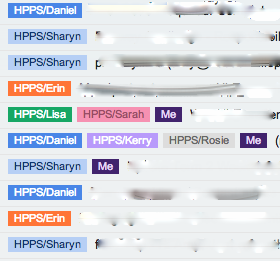
As you can see, I have no emails in my inbox - instead I use labels (which organise messages into categories) and filters (set rules for incoming messages) to sort out my emails. Some emails skip my inbox and go straight to the folder I have filtered them into (folder is shown in bold when a new message is there). Some come to my inbox and then I archive them when I have actioned it. I also only show some of my folders - those I do not use often only show if there is an unread email in it (tick show if unread).  Certain folders are colour coded so I can easily see who is involved in the messages.

Although this took a while to set-up (I had thousands of emails to label and archive), it was well worth the effort and now runs smoothly.  
Labs, Apps & Extensions
Here are some apps & extensions I can't live without:
If you haven't explored the labs under the settings in your Gmail, this would be my first stop.  Have a read and enable the ones you want.
Undo Send: get up to 30 seconds to undo a sent email.  Once this is enabled, you can go to your general settings and determine the send cancellation period (up to 30 seconds).

Extensions:
Streak: This is a customer relationship management tool but has a function that allows you to see if people have read your emails and how many times an email has been viewed.  You can also schedule when you want emails to go out.

Chrome Apps & Extensions:
Undo Close Tab: accidentally closed a tab? Use this extension to easily access closed tabs.
Buffer: great way to share content on social media, you can also analyse the content you are posting to see how many people it is reaching. Use the Buffer extension straight from your browser to send content to Buffer.
Pin It: pin straight to Pinterest
Word Cloud: Fan of Wordle? Summarise and share content of any website (either part or whole) in a word cloud.
QR Code Extension: using QR codes a bit, it's great having an extension that with a click of a button will generate the code.
OneFeed: This brings all your social media and news feeds to one place.  Customisable news feeds are great for following blogs, etc, but I often forget to go and check them.  With this extension, when you open up a new tab, instead of the default page being say google.com, it is now your news feed. Customise it by editing the sources to follow your favourite blogs, blogs from your school or any other news source with either searching their data base or using the RSS feed URL (RSS Feed extension).

Presenting Zoom (Mac Only):
I can't live without this feature on my MAC being enabled.  It allows me to zoom in on part of my screen.  Great for when I am teaching students, especially when they ask questions like "where is that button"or you just want them to focus on part of a webpage.  It is also great for giving presentations and you need to zoom in to demonstrate something.
In your settings, head to accessibility
Then enable these functions:

Now when you hold down control and use 2 fingers to scroll, the screen will zoom in and out where the cursor is (you can change the particular settings to suit your usage). This takes a little while to get used to, but well worth using.

Customise Icon
You can use your own images or images from the internet. Download the image, open it in preview. Then copy (command-c) this image.  Right click (or the equivalent) on the folder you would like to change the image of, from the menu that appears, select get info. Click on the small icon at the top left of the folder's Get Info window, and press command-V to paste in the image that you copied from the preview image.  The image should change in both the window and where you folder is.

Sunday, April 20, 2014

Google Goodness

This week I was lucky enough to visit Google in Sydney and spend time with other GCT's getting a good Google kick up the behind (aka reboot).  It had been about a year since I was last here for the Google Teachers Academy and I was ready for the fast paced learning ejection.

If you haven't checked out Google's new Google for Education site is is well worth a visit.  From tools to training to success stories, there is so much to explore.

First up Adam Naor shared insights about Chromebooks. He talked about some of the features coming up and whats next for the future of Chromebooks.  He also mentioned Microsoft Office (word, excel, powerpoint, outlook) is now in the chromestore.

Brett Morgan, a Google Developer took us through "deep thinking the Google way".
How do we design: Always come back to the problem
  • Identify the Problem
  • Decide on metrics (define success): figure out something that can be measured
  • Brainstorm solutions: come up with ideas
  • Choose a solution
  • Prototype: test with users - the user is right, not you = adaptability, keep designing until it is right for the user, not the developer!
  • Iterate: try over and over and over again and learn. Get what they build out in front of people for feedback and redesign.  
Then Sally-Ann Williams who is Google's Engineering Community & Outreach Manager, discussed the importance of computational thinking and computer science in schools.  Australia have got a new General ICT capabilities curriculum where coding should be introduced in primary school.  She talked about the future of our learners and the advantages they will have if they have coding knowledge.  Having CS + X, where computer science will be paired with x which is what you are passionate about.  Sally-Ann used the example of medicine and computer science, to cure cancer, what an advantage it will be to be able to write the computer programme (instead of waiting for someone else to). Main takeaway - coding matters!  Where does Google fit into this? They have a great resource in exploring computational thinking, with lesson, resources and how to get started.


Next Ramesh Nagarajan, a product manager on Google Drive was literally in the firing line.  He hosted a Q & A on Google Drive.  One of the first questions up was when would we be able to merge cells on a document.  We were given insights that basically equate to Google Drive becoming a lot more awesome...watch this space!

Tim Lee wowed us with Google Glass. He discussed ways Google Glass could be used in classrooms and how augmented reality tools such as Layar are able to interact with Google Glass.

Jenny Magiera hosted a grip jam. Using a pre-organised google doc, we were given around 4 minutes (the length of a song) to fill in the gripe column which could be any gripe we have at our school or with tools. Next, the Goo Idea - we had around 8 minutes  (the length of two songs) to fill in possible solutions to people's gripes.  +1 Collaborama was around 10 minutes (3 songs) in length and we added our contact details to the last column meaning we could be included in future communication (either to help with solutions or hear possible solutions) around this gripe.  This was a great way to collaborate and connect with people in the room and see what was on top for many. Jenny then shared her experience of running a playdate. An interesting way to run a conference where educators gather to share and just play. People Learning and Asking Y: Digital Age Technology Explorer. Read more about the conference concept and its conception.

We then moved on to hear from some people in the room. Kimberly Hall and Chris Hart shared their success with Google Educator Groups (GEG) specifically in Melbourne. These community groups are independently run by educators for educators and is a great platform for sharing.  

As the day rounded to a close, Matt Richards bought out his Oculus Rift, showing the next generation in virtual reality technology - truly mind blowing!

So the day wound up. My brain was full and it was off to laser tag, dinner and karaoke...but that is another post!

Check out the new Google for Education video: what does it mean for a classroom or school to "go google"?

Sunday, March 23, 2014

A peak inside HPPS...

So what is life like at Hobsonville Point Primary School (HPPS)? It has been just over a year since I jumped on board to be part of a foundation school.  Year one was was a blur...challenge, challenge, challenge is the only way to describe it.  Team teaching, open learning spaces, working with multiple year groups, these were all new experiences in my teaching practice.
So what is year two looking like?  With more kids, more staff and a better understanding of what learning looks like at HPPS.  This year I am lucky enough to teach with the wonderful and talented Erin Hall, together with thirty year 2 - 5 (6 years - 9 years old) kids what does this look like?
I think we are already on version 10.3 of what our learning common looks/ feels like. Reflecting and being challenged on the 'why' means we are continually evolving our practice. No time to sit back and be a passenger, it is full steam ahead in Learning Common 2 (LC2).

Relationships
All that we do really comes down to deep relationships. Positive relationships with students, parents, colleagues and the wider community are all vital to the success of our learners.  Shared experiences help build these relationships - for Waitangi Day, together with Hobsonville Point Secondary School, celebrated Waitangi Day with a family-friendly BBQ complete with music and entertainment from the kids.  Parent evenings are another great way to share the school's vision. We have had general evenings where parents come to have a look around to specific evenings around a certain topic/ concept (e.g. Digital Citizenship).  Each learning common also has a learning wall that documents their learning journey.  This visible learning enables parents/ caregivers to see what learning looks like and spurs on questions about what they see - further building relationships.  We also open up our common online, blogging each week with updates (LC2 Blog), planning online, ensuring transparency (LC2 planning site) and providing a supplementary learning site (LC2 Learning Site) with useful learning links.

LC2 Learning Journey Wall


Personalised Learning
Through personalising the learning (not individualised learning see personalised v differentiated individualised learning chart), students negotiate and drive what and how they learn.  Having such diverse needs within our common gives all of the us the freedoms and also structures we need to ensure we are meeting the needs of all our learners.  Our learners take control of their timetables and plan their own day/ week.  Learning is negotiated with the learner using a range of information including assessment, observations and learner passions and interests.  


So a small snapshot of life in Learning Common 2 :)

Monday, September 16, 2013

Its not the journey...but the destination

Innovation and Leadership in eLearning

My teaching and learning practices have evolved through my teaching career as I find myself continually searching for the best for my learners. Why, is a big question I have always asked. Students being at the centre of their learning and being in the driving seat, is the heart of my pedagogy. I see my role as a facilitator of their learning and creating an environment for this philosophy to flourish is an exciting journey to be on. In a 'traditional' classroom (four walls, one teacher), students developed their own individual learning programmes where I let go and the students took back control over their learning. Students decided how and when they were going to learn, as I offered workshops to cater for their needs and wants. This was hugely successful, as my learners became increasingly self-managing. This year, has been a huge change. I have been in the lucky position to help start at new 21st century school. This modern learning environment has allowed us to create a culture where the student has not only taken the driving seat, but also building their own vehicle. As a team, we have challenged not only what learning looks like to our students and community, but what our learning looks like.

eLearning had been a great carrier for being creative and innovative in my classroom practice. From starting out with basic devices (a couple of computers and iPods), the world really was our oyster. We (my students and me) began to explore a vast amount of tools, uncovering a community of learners from blogging to Wikispaces to Twitter and beyond, we had a wider audience that included family and ever growing friends around the world. Our digital toolbox grew to including numerous tools that allow us to create and innovate - aurasma augmented our classroom reality, the writers club gave us a competitive writing experience, Movie making competitions (e.g. I AM MAKING Movies, One Day on Earth) gave us the scaffolding to explore animation, acting and legomation to name just a few.

Alongside my journey, it has been great to take along supportive staff who are mostly willing to come along. Finding innovative ways to introduce new devices and tools has been interesting, to say the least. Most students are always excited and motivated to see the latest gadget, adults can take a little while to discover the excitement. From leading the introduction of over 100 iPads to putting on my Google Certified Teacher hat and looking at GAFE products to showing a cool tool (e.g. an app), I try to be creative, responsive and supportive to staff needs (and wants). Running causal drop-in tekkie sessions to speaking at conferences (and UNconferences), to parent workshops, to having a complete open door classroom policy (online and physical), paying it forward is my way of repaying the good ideas I have used from many others.

Thursday, August 15, 2013

Its not about the tools...but here are some tools

We have had quite a few visitors coming in and asking a few questions in regards to some of the tools we are using and why...here are a small sample of what and why we are using:

Explain Everything App
Students are using this interactive whiteboard to explain their learning.  Within our Maths programme, students go through the process of learn it, practice it, prove it then teach it.  This app allows students the ability to prove they know a strategy/ skill and/ or create a lesson for others to learn. This is then uploaded and embed in their Wikispace for others (including parents) to view.

Aurasma App
I have always been a huge fan of this augmented reality app, taking an ordinary physical image (e.g. a poster) called a trigger and turning it to an interactive video.  Recently, the students made how-to video's (using the trailer option in the iMovie app) of jobs that need to be done in the common. We then created an aura over the image of the job and voila, students can see what is expected of them when it is their turn on that job.  Next is to explore augmented reality art!
Aurasma how-to video's

Coding
Recently, a small number of students have wanted to learn how to code games, apps and websites.
Scratch is a great site where you can create your own interactive stories, art, simulations and games and is great for all levels. You can also check out ScratchEd a Scratch community for educators. 
Sploder is an interactive site where students can make online games using simple drag and drop skills - no coding knowledge is needed and is great for all ages.
Code Avengers is an interactive, web-based, New Zealand-made learn-to-code software programme. Designed with secondary aged students, some of our year 8's have been fine with using it.